

Fix QUERY contains / matches mistakes in Google Sheets (wrong quotes, case, or regex)
Updated
QUERY contains tests a substring. matches tests a regular expression against the whole cell. Both live inside the query string. They fail in ways that look like “QUERY is broken” when the statement actually ran: extra rows (contains 'Pro' also hits Processor), missing rows (matches 'Pro' drops Processor), or an empty #N/A because 'pro' is not 'Pro'. Wrong quotes are a parse error — that is a different page.
This page is contains / matches behavior. It is not QUERY parse string (Unable to parse query string: unquoted text, date 'yyyy-mm-dd', Col vs A). It is not QUERY no rows as a primer for where A = 999. Keep the Google Sheets UI in English.
Recreate it on a blank sheet
Section titled “Recreate it on a blank sheet”- Open a blank spreadsheet. In A1 type
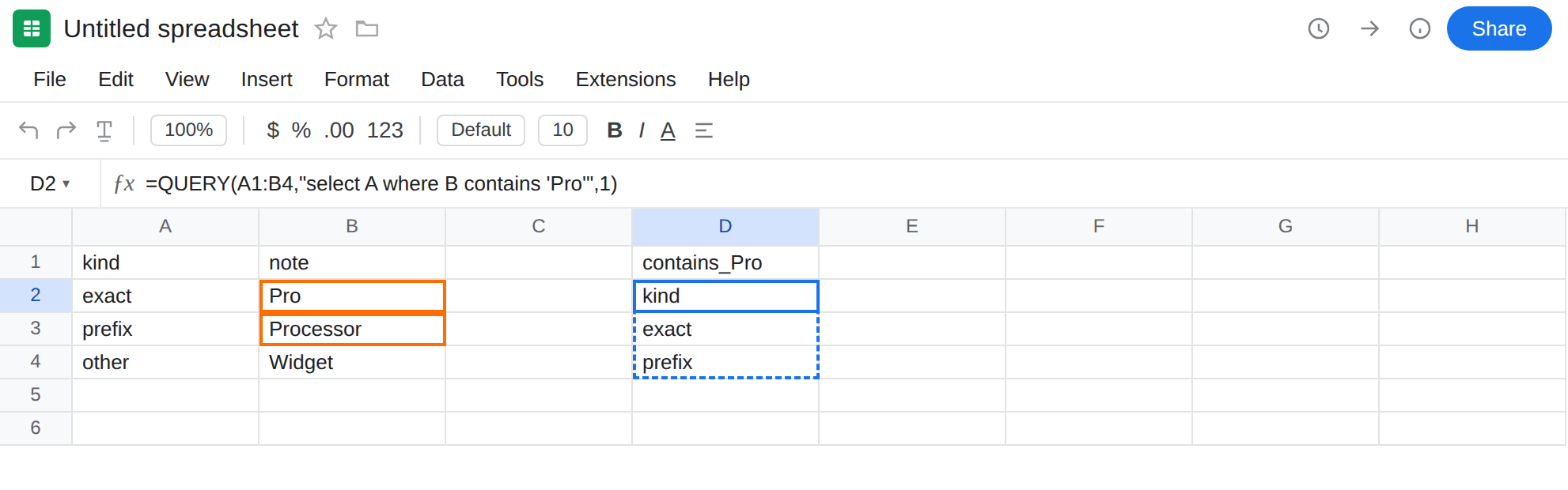
kind, B1note. A2exact. B2Pro. A3prefix. B3Processor. A4other. B4Widget. Three notes, one of which only starts with Pro.
contains is broader than you wanted. In D1 type contains_Pro. In D2 enter =QUERY(A1:B4,"select A where B contains 'Pro'",1). The formula spills kind / exact / prefix. Processor contains the substring Pro. If you meant only the row whose note is Pro, this is the surprise extra row. Leave D2 as that spill.
matches is the whole string. In D6 type matches_Pro. In D7 enter =QUERY(A1:B4,"select A where B matches 'Pro'",1). The formula spills kind / exact only. Processor does not full-match the pattern Pro. Same letters, different operator. Leave D7 as that spill.
Case miss that looks like no rows. In F1 type contains_pro. In F2 enter =QUERY(A1:B4,"select A where B contains 'pro'",1). The cell shows #N/A. Tooltip: Query completed with an empty output. pro is not Pro. contains is case-sensitive. B2 is still Pro on the sheet. Leave F2 broken.
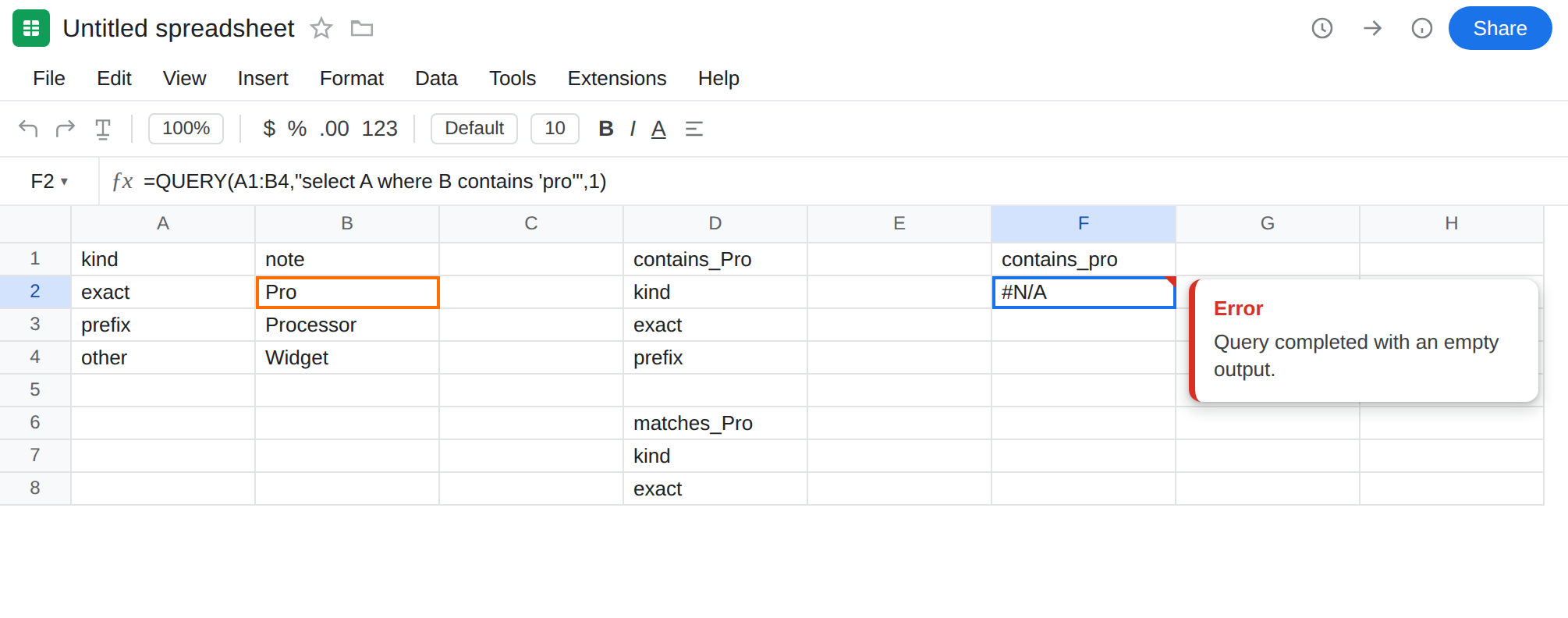
Parse contrast — wrong quotes. In F6 enter =QUERY(A1:B4,"select A where B contains Pro",1). Unquoted Pro is #VALUE!, tooltip Unable to parse query string. That is QUERY parse string. Leave F6 as the contrast. Do not “fix case” on F6. Put single quotes around the literal.
Empty sku WHERE is not this operator. In H2 enter =QUERY(A1:B4,"select A where A = 'zzz'",1). Also empty #N/A. The operator is =, not contains. That primer is QUERY no rows. Leave H2 as the contrast.
Leave D2 and D7 as the two working-but-easy-to-misread spills. Leave F2 as the case miss.
What is actually wrong
Section titled “What is actually wrong”contains 'Pro'is a substring test.ProinsideProcessoris a hit. There is no “whole word” flag oncontains.matches 'Pro'is RE2 against the entire value. It is not “contains, but regex.”Processorfails.Prosucceeds.matches 'Pro.*'would take prefix rows too.contains 'pro'is a different substring fromPro. QUERY string compares are case-sensitive. Empty output#N/Ahere is a case miss, not a missing row on the table. The empty-output tooltip is the same as QUERY no rows; the fix islower(B)or the right casing, not wrappingIFNAuntil you have looked at B2.- Unquoted
contains Pronever gets to substring logic. Parse fails first. See QUERY parse string. - Concatenation without quotes has the same parse hole:
"select A where B contains "&B2injectsProas an identifier. You need"select A where B contains '"&B2&"'".
This is not NO_COLUMN / select A on IMPORTRANGE. See Col1 vs A. A1:B4 is a sheet range. Letters A and B are correct.
This is not mixed dates. See QUERY mixed dates. Column B is text notes.
This is not FILTER mismatch. See FILTER range size.
Leave F2 and F6 broken. Leave D2 as the broad contains so you can compare.
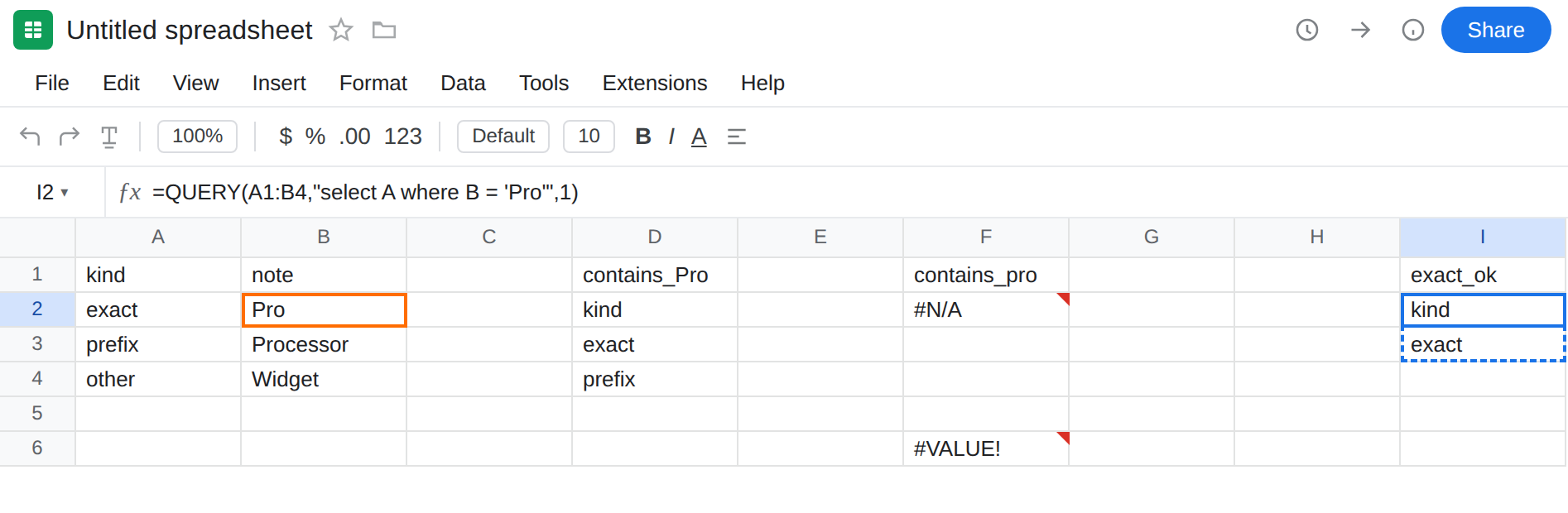
Exact note: use = or a full matches. In I1 type exact_ok. In I2 enter =QUERY(A1:B4,"select A where B = 'Pro'",1). The spill is kind / exact. matches '^Pro$' is the regex form of the same idea.
Prefix on purpose. In I6 enter =QUERY(A1:B4,"select A where B matches 'Pro.*'",1) or where B starts with 'Pro'. starts with is the QUERY keyword for a prefix without regex. contains stays the “anywhere inside” test.
Case-insensitive contains. In I8 enter =QUERY(A1:B4,"select A where lower(B) contains 'pro'",1). The spill matches D2 (exact + prefix) even though the literal is lowercase. upper(B) / 'PRO' is the same idea. Do not change File → Settings locale to fold case.
Quote concatenation. Criterion in K1 Pro. In K2 enter =QUERY(A1:B4,"select A where B contains '"&K1&"'",1). Single quotes stay inside the query string. See QUERY parse string if K2 is #VALUE!.
Do not wrap F2 in IFNA until you know 'pro' was the string you meant. See IFERROR vs IFNA. IFNA will not make contains case-insensitive.
If QUERY returns extra rows, read contains vs =. If it returns #N/A with empty output and you can see Pro in the column, check case and matches vs contains. If the tooltip is Unable to parse query string, leave this page and fix quotes on the parse primer.
contains vs matches vs empty WHERE
Section titled “contains vs matches vs empty WHERE”contains = substring, case-sensitive, extra hits on longer notes. That is D2 picking Processor.
matches = full-string regex, case-sensitive unless you write a case-insensitive pattern. That is D7 dropping Processor. matches '(?i)pro.*' is a regex way to fold case; lower(B) is easier to read.
= = whole cell, still case-sensitive. Prefer it when the note is a code, not a sentence.
Empty output with where A = 'zzz' is “that value is not in the column.” See QUERY no rows. Empty output with contains 'pro' while Pro is visible is this page. Same #N/A token. Different next step. Parse failures are #VALUE! and never run contains. See QUERY parse string.