

Split text to columns turns 03/04 into the wrong month or day
Updated
Data → Split text to columns cuts a cell on a separator. A text value 03/04/2024 becomes three pieces: 03, 04, and 2024. The dialog asks for the separator. It does not ask whether 03 is the month or the day. If the file was day-first and you build DATE as year, first piece, second piece, you store 4 March when the string meant 3 April. The pieces are not wrong. The order you assumed is wrong.
How a typed date is read is DATEVALUE day order. Text that never became a serial is dates stored as text. Keep the Google Sheets UI in English.
Recreate it on a blank sheet
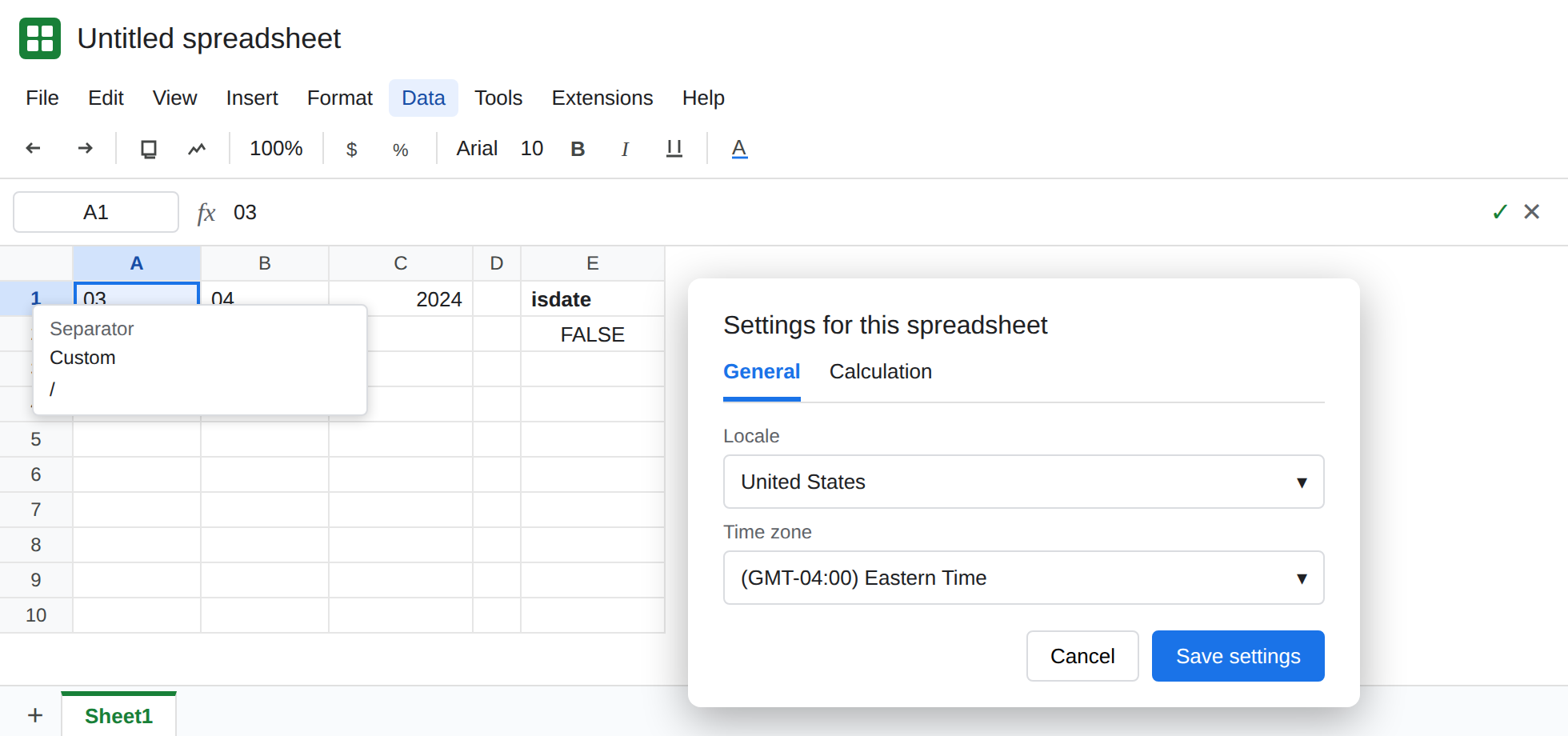
Section titled “Recreate it on a blank sheet”- Open a blank spreadsheet. File → Settings → Locale → United States. In A1 type an apostrophe and then
03/04/2024. The apostrophe keeps it text, left-aligned. You are treating that string as a day-first export: 3 April 2024. The characters do not say which side is the month. Your note does.
Split on the slash. Select A1. Data → Split text to columns. In the separator box, choose Custom and type /. A1 becomes 03, B1 becomes 04, C1 becomes 2024. They are no longer one date. =ISDATE(A1) is FALSE. =ISNUMBER(C1) may be TRUE if Sheets stored the year as a number. The original string is gone from A1. If you need it back, undo once, or retype the apostrophe form in E1 before you continue, and split a copy. Leave the three pieces if you already split A1.
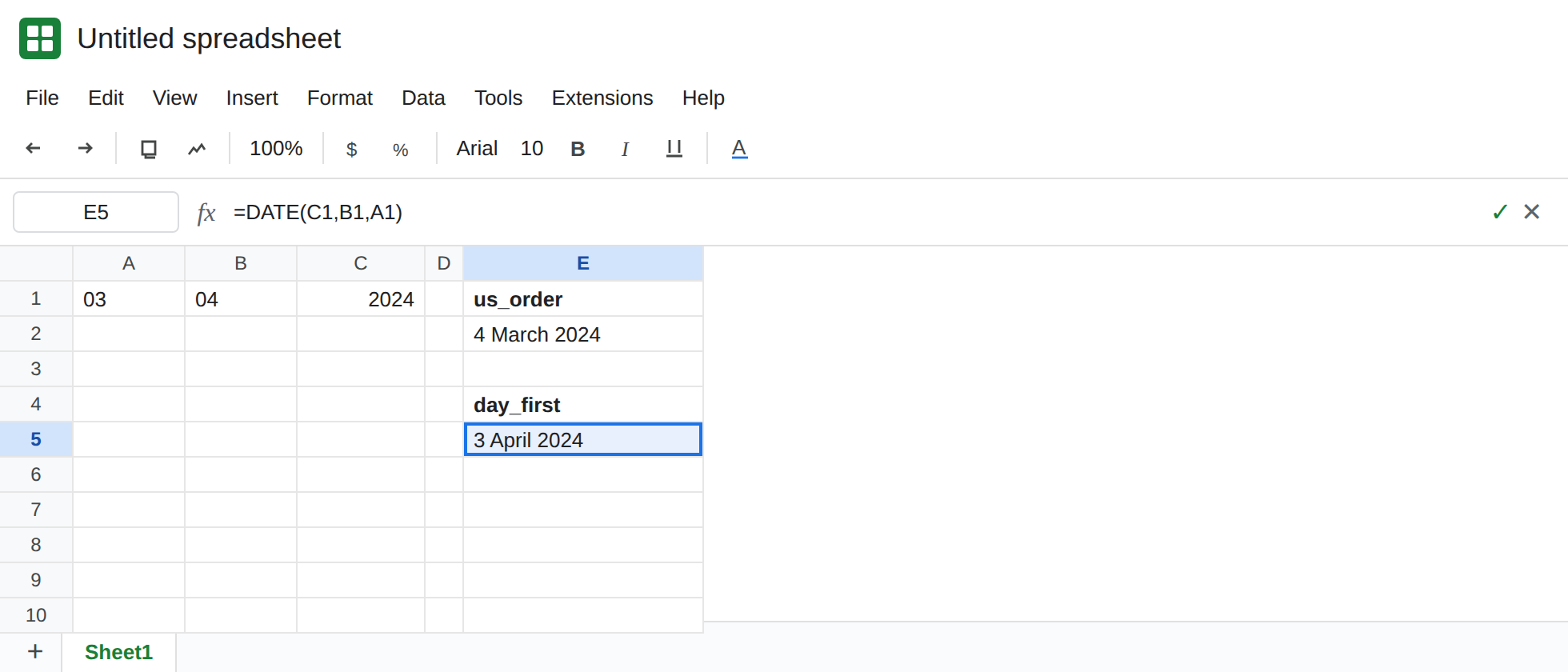
Build the date in month-first order. In E1 type us_order. In E2 enter =DATE(C1,A1,B1). Format E2 as a date. E2 is 4 March 2024. DATE takes year, month, day. You passed 03 as the month and 04 as the day. That matches a United States reading of 03/04/2024. It does not match the day-first note you started with. Leave E2 as 4 March so the mistake stays visible.
The other order. In E4 type day_first. In E5 enter =DATE(C1,B1,A1). E5 is 3 April 2024. Same pieces. Month and day swapped in the call. That is the serial the day-first file wanted.
Changing locale does not swap the pieces. File → Settings → Locale → United Kingdom, then look at A1:C1 again. They are still 03, 04, 2024. The split already happened. Locale would have mattered if you had typed 03/04/2024 without an apostrophe into a single cell. Put Locale back to United States when you are done if this file should stay month-first for new typed dates.
Excel’s wizard is a different question. Excel’s Data → Text to Columns has a column format step with Date MDY or DMY. Choosing MDY on a day-first column stores the wrong serial in one step, without a separate DATE call. Sheets’ Split text to columns does not show that MDY/DMY list. Do not look for it in the separator box.
What is actually wrong
Section titled “What is actually wrong”- Split text to columns is a one-time edit. It replaces the cell. It is not a formula. Changing the source later does nothing, because the source cell was overwritten. Undo is the way back, until undo is gone.
- The separator
/is correct for this string. Detect automatically can also choose/. Neither choice knows locale. Custom, comma, semicolon, period, and space are the separator list. Period would not cut03/04/2024. DATE(year, month, day)trusts your argument order.03and04are both valid months and both valid days. No#VALUE!saves you. March 4 is a real date. It is just not 3 April.- Locale controls new input and
DATEVALUEof a whole string. It does not rotate columns after a split. See DATEVALUE day order. - A real date serial that you split by accident is worse: you may be splitting a display, or you may have split text that only looked formatted. Check
ISDATEbefore you run the menu. A serial does not need Split text to columns. UseDAY,MONTH, andYEAR.
Leave E2 as the March serial so the wrong order stays on the sheet.
Build DATE in the order the file used. If the export was day/month/year, keep E5: =DATE(C1,B1,A1) is 3 April 2024. If it was month/day/year, E2 is the right one. Write the order in a header (day, month, year) before you split the next column, so the next DATE does not guess.
Prefer a formula when the column will be replaced. =SPLIT(E1,"/") spills the pieces and leaves the text in E1. You can still pass the wrong piece into DATE. The gain is that the original string remains. See SPLIT spill / delimiter if the spill is #REF!.
Do not split a column of real dates to “get the month.” =MONTH(A1) and =DAY(A1) read the serial. Split text to columns on a serial you forced to text will follow the characters, which follow the display format, which follows locale. That stack is how 3 April becomes three numbers in an order you did not check.
If E2 and E5 are a month apart, the pieces are fine and DATE has the month and day swapped. If DATEVALUE of the original string is #VALUE!, the string and the locale disagree. That is the DATEVALUE page. Split text to columns will still cut it. It still will not know which number is the month.