

The same named range on two sheets: wrong scope or #REF! after you delete one
Updated
Google Sheets starts with one file-wide name. qty means one range, on one tab, from every sheet. You cannot save a second qty by typing it again in Data → Named ranges. Duplicating a tab that already has qty is how a second one appears. The copy gets a sheet-scoped name. On that copy, =SUM(qty) uses the copy. On the original, =SUM(qty) still uses the original. From another tab, a formula that was pointed at the copy’s name becomes #REF! when you delete the copy.
A name that was deleted entirely, or whose cells were deleted, is named range #REF! / #NAME?. Keep the Google Sheets UI in English.
Recreate it on a blank sheet
Section titled “Recreate it on a blank sheet”- Open a blank spreadsheet. Leave the first tab named
Sheet1. In A1 typeqty. A22. A34. A46. Select A2:A4. Data → Named ranges. Nameqty. RangeSheet1!A2:A4. Done. In C1 typesum. In C2 enter=SUM(qty). C2 is12. That cell is the control.
Try to add the same name by hand. Data → Named ranges → Add a range. Name qty again, pointed at any cells. Sheets will not keep a second file-wide qty. The existing name is already in the list. Cancel. You still have one qty.
Duplicate the tab. Right-click the Sheet1 tab → Duplicate. The new tab is Copy of Sheet1. Its A2:A4 is 2, 4, 6 as copied values. On that tab, change A2 to 10. In C2 on the copy, the formula is still =SUM(qty). Read the result and open Data → Named ranges.
- If the sidebar shows a second range tied to
Copy of Sheet1, C2 on the copy is20(10+4+6) and C2 on Sheet1 is still12. Same formula text. Two ranges. On the copy, click C2 and look at the formula bar. Sheets may rewrite the reference to include the sheet when you point at the other tab’sqty. Leave both totals. This is the clash. - If the sidebar still shows a single
qtyon Sheet1, C2 on the copy is12even after you set the copy’s A2 to10. The formula is using Sheet1’s numbers. That is the “wrong sheet” version of the same mistake. Leave it.
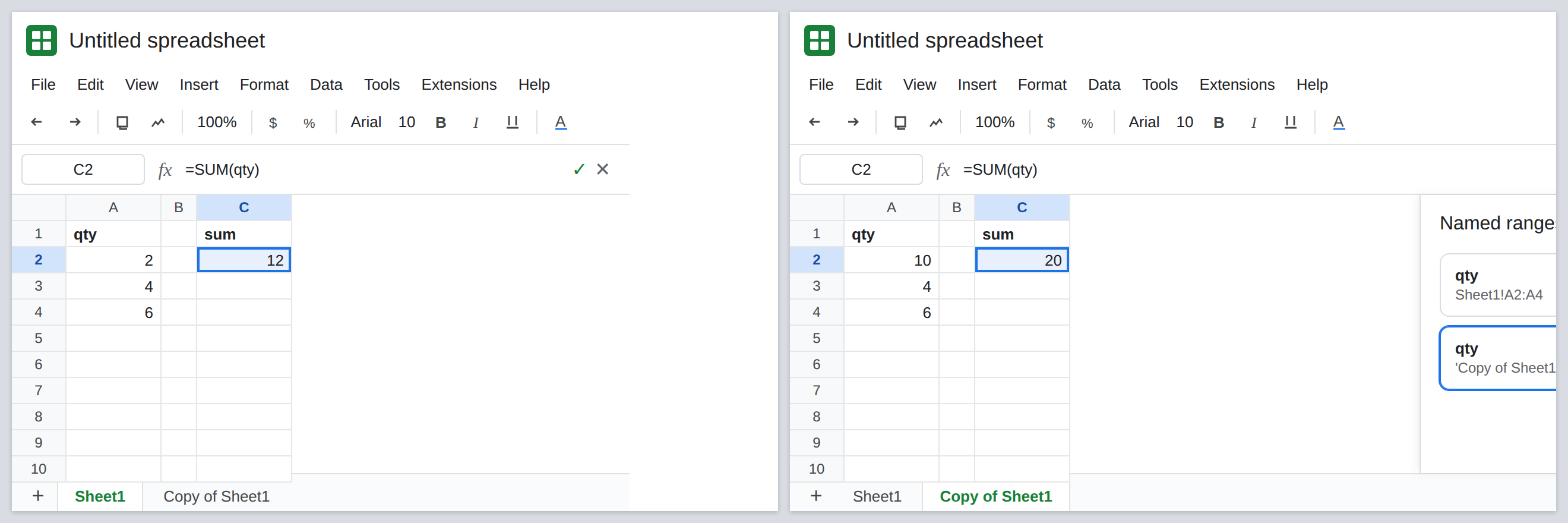
Delete the copy. Add a pointer from Sheet1 before you delete, so the #REF! has somewhere to land. On Sheet1, in E1 type other. In E2, start =SUM( and then insert the copy’s qty from the named-range list (the one whose range is on Copy of Sheet1). The formula bar shows a sheet-qualified name, not the bare qty that C2 uses. Confirm E2 matches the copy’s total. Then delete the Copy of Sheet1 tab. E2 is #REF!. C2 on Sheet1 is still 12 if the file-wide qty pointed at Sheet1. The formula bar of E2 still mentions the name. Leave E2 broken.
Excel’s Scope column is the other product. Excel’s Name Manager can store two qty names with Scope set to different sheets, or one workbook-scoped name. File → Import of that workbook into Sheets does not promise the same two scopes. After import, open Data → Named ranges and read where each name points before you trust =SUM(qty).
What is actually wrong
Section titled “What is actually wrong”- A bare name is not “the column on this tab” unless a sheet-scoped name exists on this tab. With one file-wide
qty, every sheet’s=SUM(qty)is Sheet1. The copy’s A2 can change all day and C2 will not. - Duplicating the tab is what creates the second scope. The sidebar is the proof. Two entries means two ranges. One entry means the copy is borrowing Sheet1.
- Deleting the tab deletes that scoped target. Formulas that were qualified to it return
#REF!. Formulas that still use the file-wide name do not. See named range #REF! / #NAME? when the only name is gone (#NAME?) or its range is already#REF!inside the sidebar. - A typed second
qtynever saved. If you thought you protected the copy with its own name and the sidebar has one row, the second name was not created. IMPORTRANGEof the name looks the name up on the source file. Local scope on the destination does not satisfy that string. See IMPORTRANGE named range.
Leave E2 as #REF! if you deleted the copy, so the qualified name stays visible.
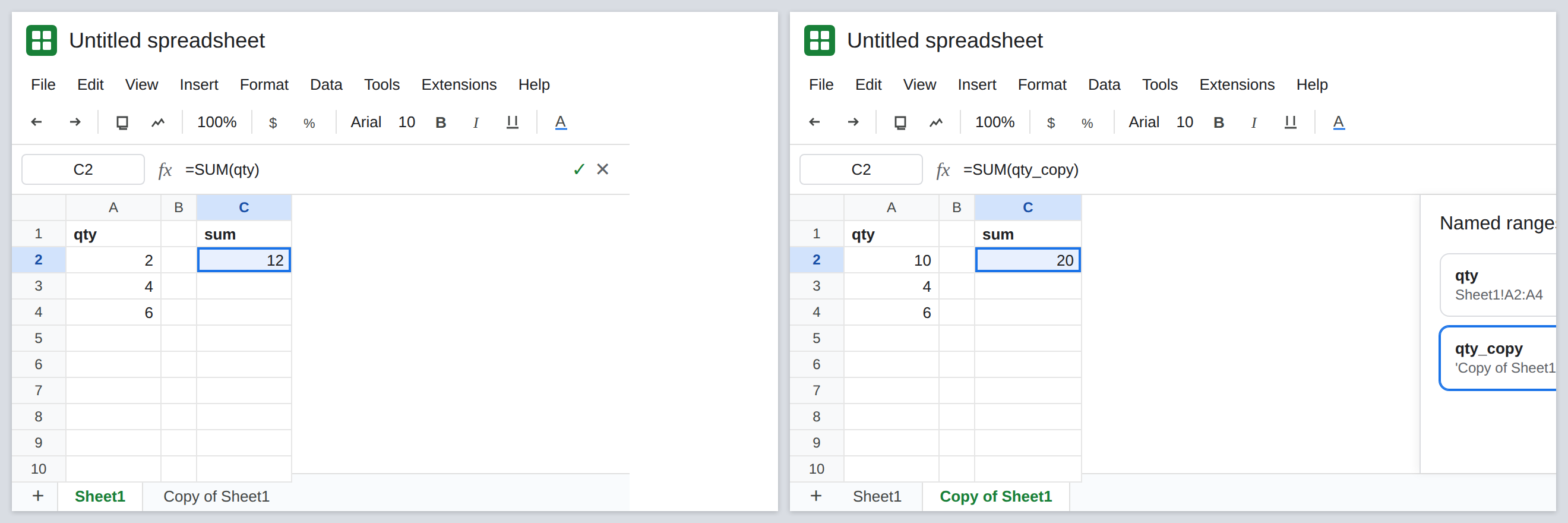
Give each range its own spelling. On Sheet1, keep qty as Sheet1!A2:A4. On the copy, delete the scoped duplicate in the sidebar (open it, delete) and add qty_copy on that tab’s A2:A4. Formulas that mean the copy say qty_copy. Formulas that mean Sheet1 say qty. C2 stays 12. A formula on the copy that should follow the copy’s 10 uses qty_copy and totals 20.
If you still need the deleted tab’s total, restore the tab or point E2 at a range that exists (=SUM(Sheet1!A2:A4)). Recreating a name with the old spelling does not repair formulas that stored the sheet-qualified reference as #REF!. Those cells need to be written again.
Do not wrap E2 in IFERROR. You will hide a deleted scope and a typo the same way. See IFERROR vs IFNA.
If =SUM(qty) moves when you edit the other tab, you have one file-wide name and you are on the wrong sheet. If deleting a duplicated tab turns one formula into #REF! and leaves another alone, the broken formula was the scoped name. Check the sidebar before you rename anything else.