

Restoring a version leaves a named range pointing at #REF!
Updated
A named range stores a target, not a copy of the values. File → Version history → Restore this version writes an old snapshot back over the file, including those targets. The cells can look normal again while Data → Named ranges still shows #REF! for the name. Every formula that uses the name is #REF!. The formula bar still shows the name. It does not show #REF! typed in the formula.
Deleting the name, or deleting the column it pointed at, without a restore, is named range #REF! / #NAME?. A LET name never appears in that sidebar. See LET #NAME?. Keep the Google Sheets UI in English. Sheet Error is an independent formula-error library, not a Google product.
Recreate it on a blank sheet
Section titled “Recreate it on a blank sheet”- Open a blank spreadsheet you can restore without losing other work. In A1 type
bay. A2N12. A3N18. A4N21. Data → Named ranges. Namebay_ids, rangeA2:A4. In C1 typecount. In C2 enter=COUNTA(bay_ids). C2 is3.
Name a good snapshot. File → Version history → Name current version. Call it ranges-ok. Close the history panel. C2 is still 3.
Break the target, then keep working. Delete column A. C2 becomes #REF!. Open Data → Named ranges. bay_ids is listed and its range is #REF!. The formula bar is still =COUNTA(bay_ids). Type a new header in A1 (bay) and N12, N18, N21 in A2:A4 so the grid looks repaired. Do not edit the named range. C2 stays #REF!. The new cells are not the target the name stored. That much is the delete-column case on named range #REF! / #NAME?. The restore is the next step.
Restore the named version. File → Version history → See version history. Open ranges-ok. Restore this version. The old grid comes back. Click C2 and open Data → Named ranges before you trust the 3.
Check the name’s range field. A healthy restore shows Sheet1!A2:A4 and C2 is 3 again. That is the control when the snapshot and the name agree. If the range field is #REF! and C2 is #REF! while A2:A4 shows the bay ids on the sheet, the restore brought the formula and the values back and left the name pointing at a deleted target. Leave that #REF! in place if you see it. Do not delete bay_ids to “clear the error.”
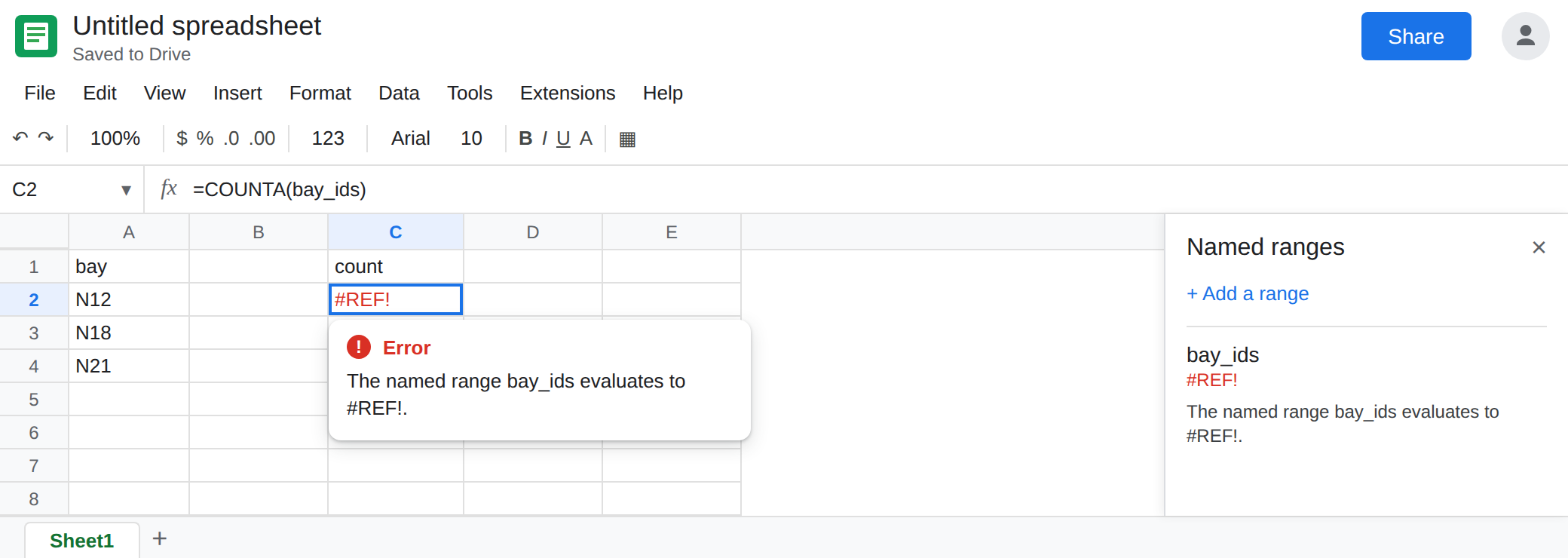
A missing name is the other error. If the restored snapshot had no bay_ids at all, C2 is #NAME? and the sidebar does not list it. That is “name does not exist” on the named-range page, not a #REF! target. Note which one you got.
If your restore fully repaired C2, you can still see the broken pointer by stopping before the restore: the deleted column is enough to put #REF! on the name. The lesson that belongs only to this page is to open Named ranges after every restore, because a grid that looks restored can still carry a dead target.
What is actually wrong
Section titled “What is actually wrong”- Version history stores the named-range definitions that existed in that snapshot. A snapshot taken while a name was already
#REF!restores that dead target along with the formulas. A snapshot taken before the name existed restores formulas that then show#NAME?if the current name is not in the snapshot. - Seeing the bay ids in column A does not mean
bay_idspoints at them. The name is a separate record. After a column delete, the record is#REF!until someone edits it. Retyping A2:A4 does not relink it. A restore does not relink it either, unless the snapshot itself has a live target. - The formula text is still the name. Replacing C2 with
=COUNTA(A2:A4)hides the problem in one cell and leaves every other formula onbay_idsbroken. - Deleting the name changes
#REF!into#NAME?. You lose the list of formulas that were using it as a single sidebar row. Re-pointing keeps the name.
This is not a circular #REF!. See circular dependency. C2 does not refer to itself. The tooltip on a dead named range is about the name’s target.
This is not LET. A local name in LET is not in Data → Named ranges and is not restored as a sidebar entry. See LET #NAME?.
If C2 is 3 and the sidebar range is A2:A4, the restore lined up. Leave it.
Re-point the name. Data → Named ranges → bay_ids → edit the range → select A2:A4 → Done. C2 becomes 3 without a change to the formula. Do this for every name whose range field is #REF! after the restore. The cells you select are the ones on the sheet now, not the address you remember from an older tab that no longer exists.
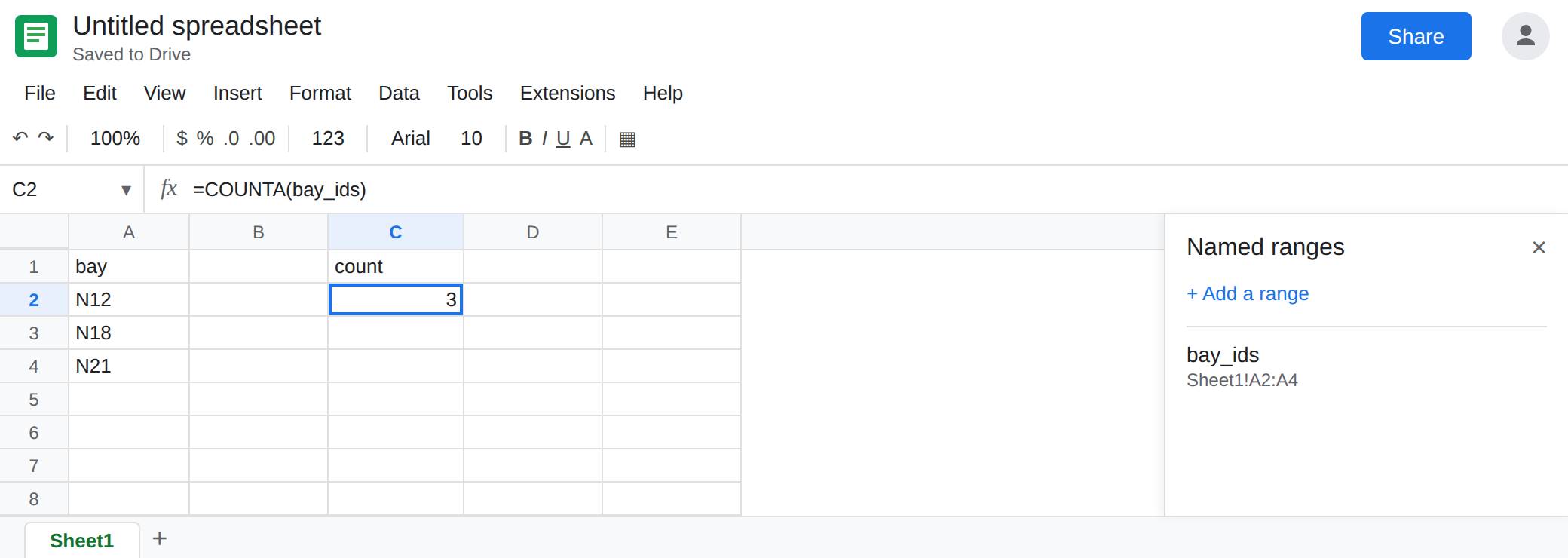
If the name is absent, create it again on A2:A4 with the same spelling the formulas use. #NAME? becomes 3. Guessing a new spelling leaves the formulas broken.
Before you restore a file people are using, File → Make a copy, or name the current version, so you can return. Restore replaces the current grid. It is not an undo that keeps today’s named ranges beside yesterday’s cells.
Do not wrap C2 in IFERROR while the sidebar says #REF!. You would publish a blank count and the other formulas would still be broken. See IFERROR vs IFNA.
If formulas show #REF! and the formula bar still contains the name, open Data → Named ranges. A #REF! target after Restore this version is a pointer to fix, not a formula to rewrite. Re-select the cells. If the name is missing, you are on the #NAME? half of the named-range page.