

IMAGE of a Google Drive link stays blank until the file is shared
Updated
IMAGE fetches a URL with no Google login and paints the bytes in the cell. A Drive link of the form https://drive.google.com/file/d/FILE_ID/view is a web page, so the cell stays blank. A direct uc or thumbnail URL of the same file stays blank while the file is Restricted, because the request is anonymous. Anyone with the link (Viewer) is what lets that fetch succeed. Editors of the spreadsheet are not viewers of the image.
A host that does not resolve, and a missing https://, are IMAGE failed to load. A good URL that looks blank because the row is short or the mode is wrong is IMAGE mode / size. Keep the Google Sheets UI in English. Sheet Error is an independent formula-error library, not a Google product.
Recreate it on a blank sheet
Section titled “Recreate it on a blank sheet”- Open a blank spreadsheet. Upload a small PNG you own to Drive. Copy its file id from the
/file/d/FILE_ID/part of the address. Leave the file Restricted (only people you add).
The viewer page. In A1 type view. In B1 paste https://drive.google.com/file/d/FILE_ID/view with your id. In C1 enter =IMAGE(B1). The cell does not show the PNG. You get a blank, a failed load, or #N/A. Opening B1 in a browser can still show the image to you, because you are signed in. IMAGE is not signed in as you. Leave C1 broken.
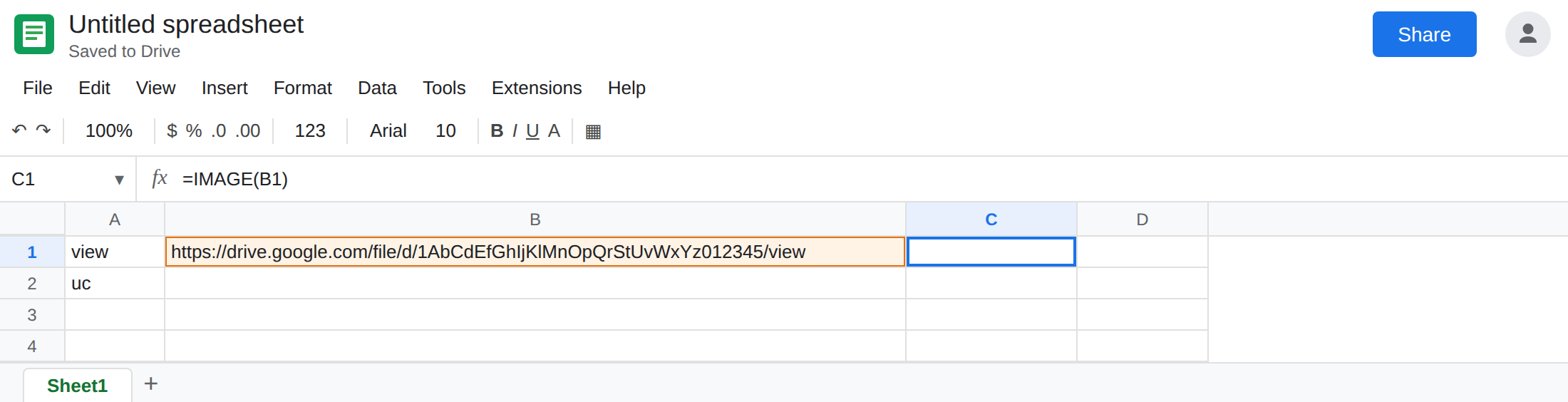
The same id, still private, as a file URL. In A2 type uc. In B2 enter ="https://drive.google.com/uc?export=view&id="& the id, or paste that URL. In C2 enter =IMAGE(B2). Still no picture. Restricted means the anonymous fetch does not get image bytes. Leave C2 broken.
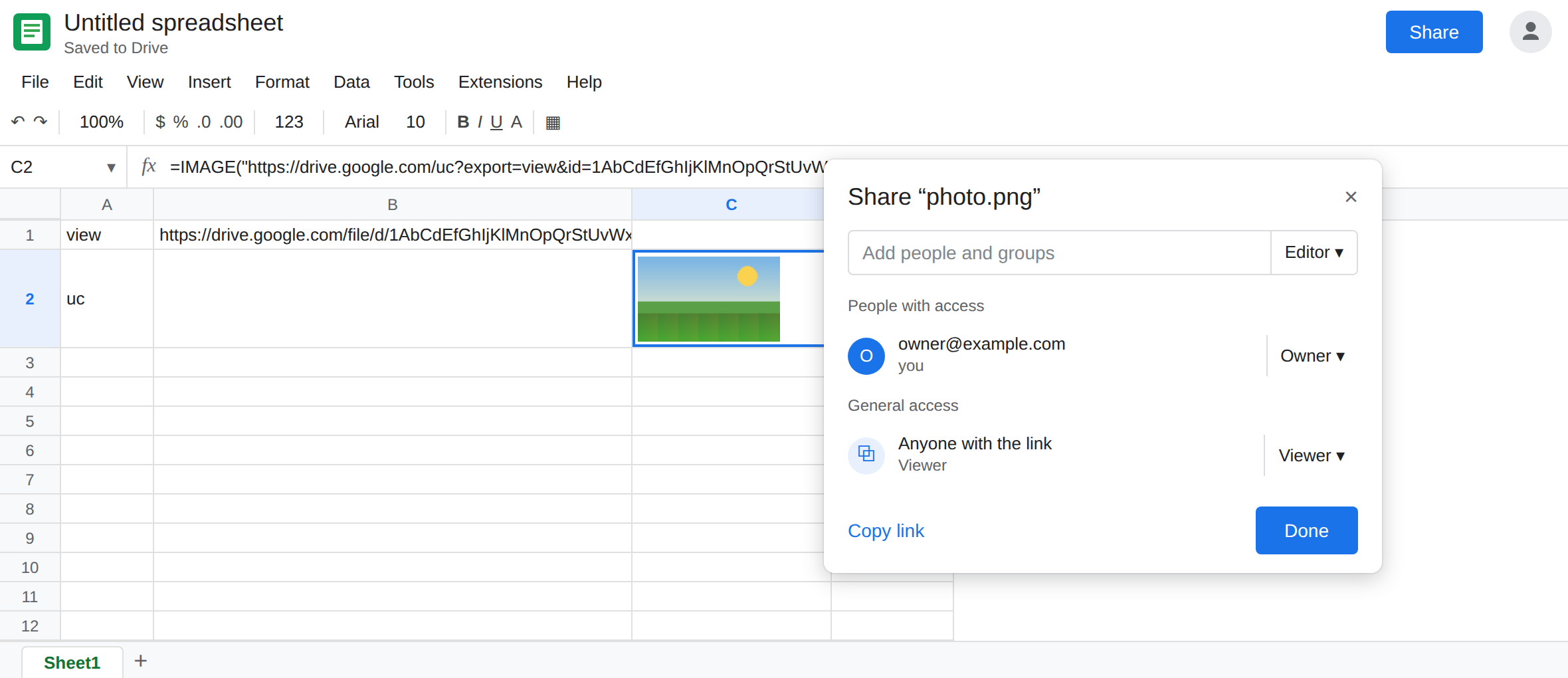
Anyone with the link. In Drive, share that file: General access → Anyone with the link, role Viewer. Come back to the sheet. C1 often stays blank, because B1 is still the HTML viewer. C2 can then show the PNG. If it does, that cell is the control: same function, same id, sharing changed, URL shape is a file rather than a page.
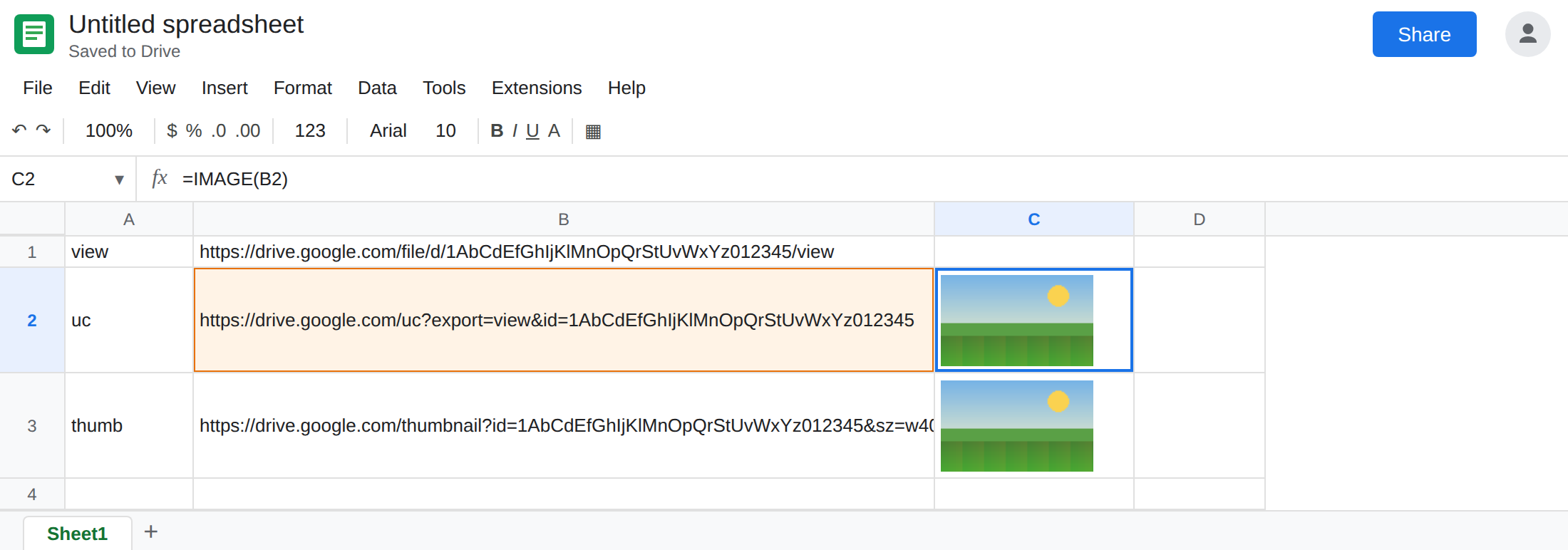
Thumbnail shape. In B3 enter ="https://drive.google.com/thumbnail?id="& your id &"&sz=w400". In C3 enter =IMAGE(B3). After the same share, C3 should draw. sz=w400 is a pixel hint on that endpoint. It does not fix a Restricted file. Set the share back to Restricted for a moment if you need to see C2 and C3 go blank again, then restore Anyone with the link so the working cells stay.
Leave C1 broken. Leave C2 (and C3) working only while the file stays shared that way.
What is actually wrong
Section titled “What is actually wrong”IMAGEdoes not use your Drive session. A file only you can open looks, to this function, like a URL with nothing to paint. Editors of the spreadsheet still count as “nobody” on a Restricted file.- The
/viewaddress returns a page. Sharing does not turn that page into a PNG. C1 is the shape problem. C2 before the share is the permission problem. They look the same in the grid. - Google’s own
IMAGEhelp has also said Drive-hosted URLs are unsupported. Treat C2 as a fetch that works only while the file is public to the link and the endpoint still returns bytes. If Anyone with the link is set and C2 is still empty, do not keep rewriting the formula. Use Insert → Image → Image in cell, which stores the picture in the spreadsheet instead of fetching Drive. - Mode
1in a very short row can hide a picture that did load. If C2 suddenly works and looks blank, check the row height before you change sharing again. See IMAGE mode / size.
This is not IMPORTRANGE. A sheet-to-sheet connect prompt is IMPORTRANGE access. IMAGE has no Allow access button for a Drive file. The share dialog on the file is the permission.
A clickable label that opens Drive and then says you need access is HYPERLINK for viewers. That cell can still show the label. This cell is trying to paint pixels.
Leave C1 as the /view failure.
Share the file, then point IMAGE at a file URL. Anyone with the link, Viewer. Keep C2: =IMAGE("https://drive.google.com/uc?export=view&id=FILE_ID") with your id. C3’s thumbnail URL is the other shape to try. Do not paste the /view link into IMAGE.
If the picture must not be link-visible, do not use IMAGE of Drive. Insert → Image → Image in cell (or over cells). The bytes live in the spreadsheet. People who can open the sheet see the picture without a second share on a Drive file.
Allow access on the first external IMAGE is a different banner. It is the one IMAGE failed to load describes for a public https PNG. Clicking it does not share your Drive file.
Do not wrap C1 in IFERROR. You would hide a blank picture and still have no image.
If IMAGE of Drive is blank, check two things in order: the URL is uc or thumbnail, not /view, and the file’s general access is Anyone with the link. A Restricted file fails both endpoints. A public PNG on a normal website is the other page.