

FILTER and REGEXMATCH keep partial cells when the pattern has no ^ and $
Updated
REGEXMATCH succeeds when the pattern matches anywhere in the cell. FILTER then keeps every TRUE row. The pattern A12 keeps A12, and it also keeps A12-X, XA12, and A123. There is no #N/A. The list looks successful and it is too wide. ^ and $ mean the pattern has to be the whole cell.
A dot that matches any character, and a bare (, are FILTER + REGEXMATCH. This page does not rebuild that sku. Keep the Google Sheets UI in English. Sheet Error is an independent formula-error library, not a Google product.
Recreate it on a blank sheet
Section titled “Recreate it on a blank sheet”- Open a blank spreadsheet. In A1 type
sku, B1bay. A2A12, B2exact. A3A12-X, B3suffix. A4XA12, B4prefix. A5A123, B5longer. In A6 typeA12followed by a space, B6space. Five skus. Only A2 is the characters A, 1, 2 and nothing else.
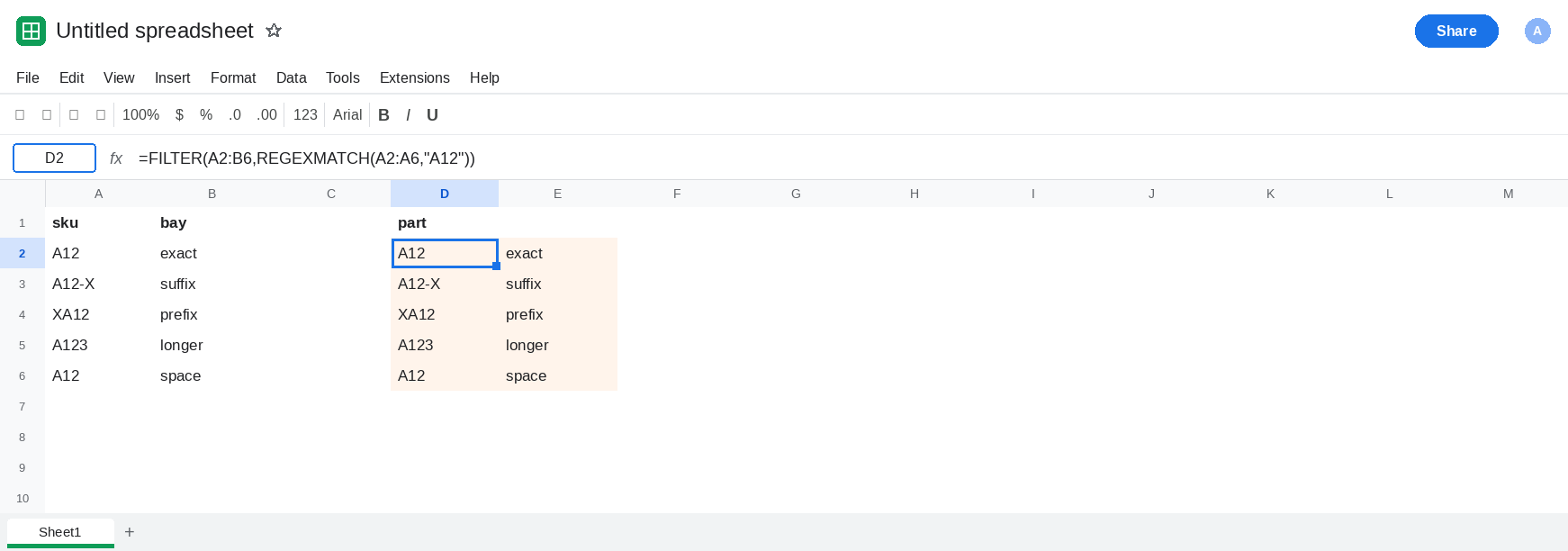
Unanchored. Leave D2:E6 empty. In D1 type part. In D2 enter =FILTER(A2:B6,REGEXMATCH(A2:A6,"A12")). The spill includes exact, suffix, prefix, longer, and space. Each of those cells contains A12 somewhere. No error triangle. You asked for a code and received every row the pattern could touch. Leave D2 as that wide spill.
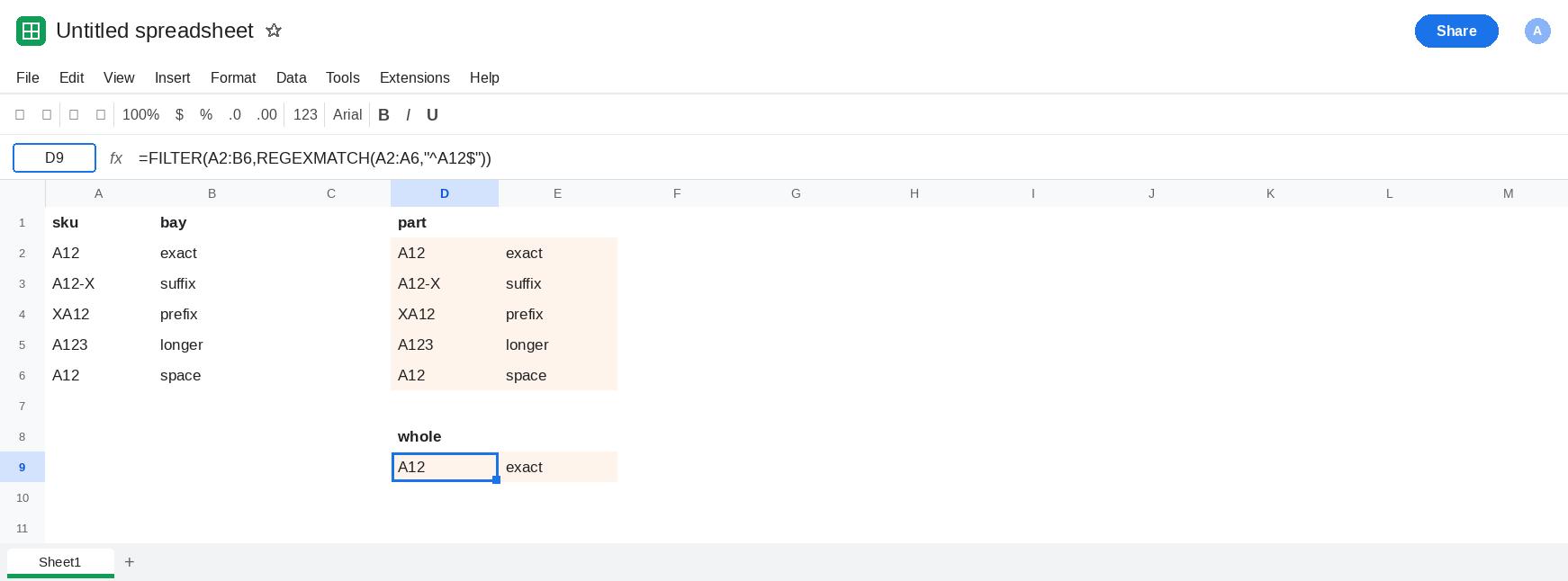
Whole cell. In D8 type whole. In D9 enter =FILTER(A2:B6,REGEXMATCH(A2:A6,"^A12$")). The spill is one row: A12 / exact. A12-X fails because of the suffix. XA12 fails because of the prefix. A123 fails because of the extra digit. The trailing space in A6 fails because a space is a character. D9 is the control.
The same tests without FILTER. In G2 enter =REGEXMATCH(A3,"A12"). G2 is TRUE. In G3 enter =REGEXMATCH(A3,"^A12$"). G3 is FALSE. A3 is A12-X. The pattern did not change its letters. The anchors did. Leave G2 as TRUE and G3 as FALSE.
A real miss. In G5 enter =FILTER(A2:B6,REGEXMATCH(A2:A6,"^Z9$")). #N/A, because nothing is the whole cell Z9. That empty result is FILTER no match. D2 is not that. D2 returned rows.
Leave D2 wide. Leave D9 as the single exact row.
What is actually wrong
Section titled “What is actually wrong”REGEXMATCHis a search, not an equality test. Without^and$, a hit in the middle of the cell is enough. D2 is that rule, applied to five skus that all contain those three characters.^anchors the start.$anchors the end. Both are required for “the cell is exactly this.”^A12still matchesA12-X, because the start isA12and the end is free.A12$still matchesXA12.- A trailing space is not trimmed by the anchors. A6 fails
^A12$on purpose.TRIMbelongs in the pattern’s input when the sheet has padded codes:REGEXMATCH(TRIM(A2:A6),"^A12$")needsARRAYFORMULAaroundTRIMif you pass the whole column. Cleaning the cells is the durable fix. - Case is still exact.
^a12$does not matchA12. See REGEXMATCH (?i). QUERYmatchestests the whole cell already. People arriving from that clause expectREGEXMATCHto do the same. It does not, until you add the anchors. See CONTAINS vs MATCHES.
This is not SEARCH inside FILTER, which errors with #VALUE! on a row that lacks the text. See FILTER contains. D2 did not error. It kept too many rows.
The metacharacter . is a different extra match. N12.4 matching N12X4 is FILTER + REGEXMATCH. Escaping a dot does not stop A12 from matching A123.
Leave D2 as the wide spill.
Anchor the code. Keep D9. When the pattern is built from a cell, escape regex characters and then wrap the anchors. In G7 enter =FILTER(A2:B6,REGEXMATCH(A2:A6,"^"&"A12"&"$")). The spill matches D9: one row, A12 / exact.
Equality when the code is literal. In G9 enter =FILTER(A2:B6,A2:A6="A12"). That also returns only A2. Use it when you do not need a pattern. REGEXMATCH is for patterns. Anchors are how a pattern becomes a whole cell.
Do not wrap D2 in IFNA. It is not #N/A. The extra rows are matches.
If FILTER returns A12-X for the pattern A12, the pattern is unanchored. Add ^ and $. If the pattern contains a dot or an open parenthesis, use the metacharacter page. If the spill is #N/A and the tooltip says no matches, the code really is absent.